> For the complete documentation index, see [llms.txt](https://docs.pullrequest.com/customer-documentation/llms.txt). Markdown versions of documentation pages are available by appending `.md` to page URLs; this page is available as [Markdown](https://docs.pullrequest.com/customer-documentation/cloud-integrations/adding-gitlab-projects.md).
# Adding GitLab Projects
In order for our system to post feedback to your GitLab merge requests, a posting user must be added to your team.
## Step 1: Designating a Posting User
GitLab requires a user account to post inline feedback to merge requests. We have a global user ([@PullRequestBot](https://gitlab.com/PullRequestBot)) which can be used for this.
You can also create your own H1 Code service user for interacting with GitLab merge requests.
{% hint style="info" %}
**NOTE**: If your organization uses SAML, you WILL NOT be able to use the [@PullRequestBot](https://gitlab.com/PullRequestBot) global user. A new user in your GitLab Group will need to be created.
{% endhint %}
### Create a Service User for HackerOne Code
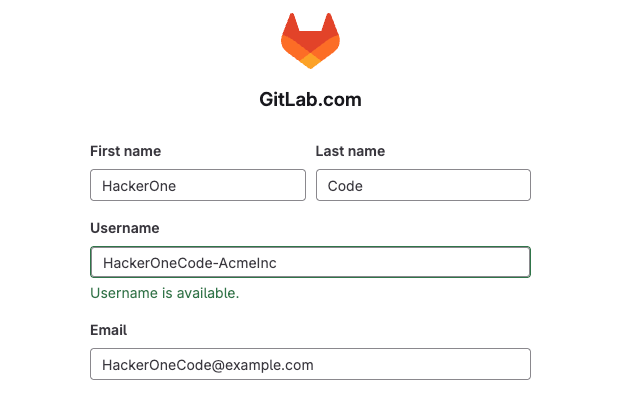
First, create a new user that will have access to all Projects or Projects in scope of service.
HackerOne Code will use this user to post scan results and validated issues.
**\*\*\*We strongly recommend adding the following image as the posting user's avatar and** `Hackerone Code` **as part of the Username**. This provides a much better end-user experience; it allows the service to be easily identified in the GitLab interface:
{% file src="/files/OBk998HAFQRbqiafYMOH" %}
Creating a new GitLab user
### Log in to GitLab as a user with permission to invite members
{% hint style="info" %}
**NOTE:** If your organization's GitLab instances contains Repositories in Projects spanning multiple Groups, these steps will be required for each group.
{% endhint %}
Navigate to **Group Information** -> **Members** in the side bar.
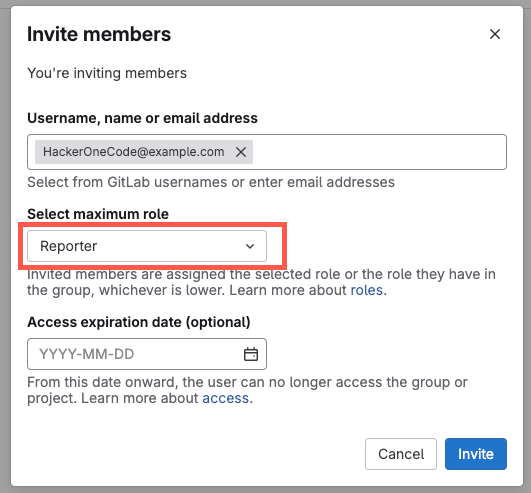
Click **Invite Members**.
{% hint style="danger" %}
The user taking this action will need to have at least the [Maintainer role](https://docs.gitlab.com/user/permissions/#user-management) of a Group. If the "Invite members" option isn't visible, you may need to work with a team member with an Owner or Maintainer role within the Group to take this action
{% endhint %}
In the **Username or email address** field, search for the newly created user and select the **Reporter** role.
{% hint style="info" %}
The service user requires **Reporter** access and will need to be added to all of the Projects in scope of service. We recommend inviting the user to the root-level Group so there's no disruption in service if you add or move repositories in the future.
{% endhint %}
### Log into HackerOne Code with the new service user
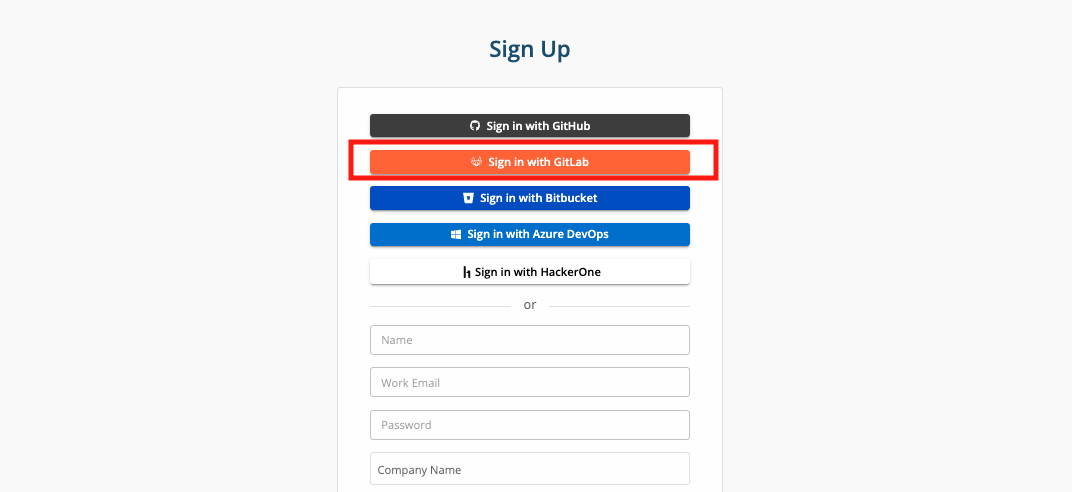
Connect the newly created GitLab user account to H1 Code via our OAuth sign-up flow by clicking on [Sign Up with GitLab](https://app.pullrequest.com/signup).
Once the account is connected, please let your HackerOne team know and we can configure that account to be the one that your code review feedback is posted from.
## Step 2: Authorize GitLab Group Integration
{% hint style="info" %}
**The following steps must be completed by a GitLab user with an Owner role for the Groups and Projects that need to be integrated.**\
\
If you're still logged in as the new GitLab service user for H1 Code, be sure to log out and log back in to GitLab as your standard user for your organization.
{% endhint %}
After authenticating with GitLab, you'll be prompted to authorize and connect with a version control hosting provider. Click the **GitLab** option.

You'll then be asked to authorize your GitLab user account with HackerOne's GitLab application: **HackerOne Code**.
{% hint style="info" %}
**NOTE:** The application and entity name 'HackerOne Code' is expected. This is separate from [HackerOne's GitLab integration](https://docs.hackerone.com/en/articles/10394699-gitlab-setup) for disclosure and bounty programs. [Read more](https://techcrunch.com/2022/04/28/hackerone-buys-yc-backed-pullrequest-to-add-code-review-to-bug-squashing-platform/)
{% endhint %}
## Step 3: Select GitLab Group
You'll be prompted with a list of GitLab Groups associated with your GitLab account.
Select the Group you'd like to connect with and click **Next**.
{% hint style="info" %}
**NOTE:** Multiple GitLab Groups can be connected. You can add more later if necessary.
{% endhint %}

{% hint style="warning" %}
**Don't see the Group you need?**
\
GitLab account used to connect repositories with HackerOne Code must be an Owner.
Reach out to a team member with these credentials and ask them to sign up for HackerOne Code and [connect](/customer-documentation/cloud-integrations/adding-gitlab-projects.md#step-1-authorize-and-connect). At that point, Project and Group details should be available to non-Owner members in the H1 Code dashboard.
{% endhint %}
## Step 4: Select GitLab Projects (Repositories)
Next, you'll be prompted to select which GitLab Projects (repositories) you'd like to connect to HackerOne Code.
You can select multiple Projects within the Group, or All Projects (recommended).

{% hint style="info" %}
**NOTE:** If practical, we recommend selecting **All Projects** as this will also automatically connect future repositories and include a more comprehensive overview of your development activity across all repositories in your GitLab Group in our metrics dashboards.
Connecting repositories to *will not* initiating H1 Code scans or incur any additional fees/overages. These will be configured later.
{% endhint %}
## Step 5: View Repositories
Repositories should now appear on the HackerOne Code [**dashboard**](https://app.pullrequest.com/dash/) page when the GitLab Group is selected from the Organizations drop-down menu at the top-left portion of the screen.
{% hint style="info" %}
**NOTE:** This guide contains screenshots from third-party partner interfaces that may be modified without notice. If you have any issues or questions about integration, please reach out to your HackerOne team.
{% endhint %}